


Tutorial written by and © to Bits N Bobs 17th January 2022.
Results are for personal use only.
No monetry gain allowed and that includes placing them behind a paid or donation based membership area.
You are not allowed to share/forward or translate any of my tutorials or place them on any blog, website, DVD or anywhere else without my permission.
These tutorials are written from my own ideas and any similarities to any other tutorial is purely coincidental.
All tutorials are for those with a working knowledge of paintshop pro.
I reserve the right to amend these terms at any time.
Supplies needed.
Font of choice for your name.
I am using Winter in January
Tube of choice.
I am using 102-2 by Anna Liwanag
Any sparkle you have.
I have included mine below if you would like to use it.

DSB Flux/ Linear transmission
Note
This tutorial was written in PSP 9.
Double click on your font and minimize.
Open all other supplies in paintshop.
Install any required plugins
Open a new image, 600 w x 250 h at 72 dpi.
1. On working image pick a colour from your tube and flood fill.
I have chosen black, #000000
Copy your tube, paste as a new layer on working image.
Image/ rotate/ free rotate/ left 90 all layers untabbed.
Effects/ Edge effects/ Enhance more.
Layers/ Duplicate layer.
Repeat so you have 4 layers.
Rename them 1 - 5 starting with your bottom flooded layer as Layer 1
2. Activate Layer 2
Effects/ Dsb flux/ Linear transmission.
Slice size 7, Offset 4, Blend -4, Direction Vertical.
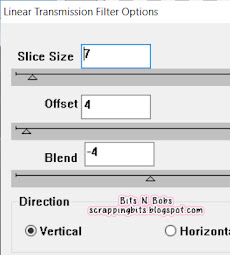
Layer 3 repeat the effect but change the Offset to 8.
Layer 4 repeat the effect but change the Offset to 12.
Layer 5 repeat the effect but change the Offset to 16.
3. Activate layer 2,
Copy your sparkle and paste as a new selection in several areas.
Where is entirely up to you but remember Selections./ Select None after each layer
Activate layer 3 and repeat, trying to place the sparkle in different areas.
Do the same for layers 4 and 5.
You should have finished with Layer 5 active.
4. Copy your tube, paste as a new layer.
Position to your liking on the right hand side.
Add a drop shadow off choice.
I am using...
V 3 - H 3 - O 65 - B 11 - Colour #000000

Add any text you wish on this layer.
I added 'You're As Cold As Ice' with the same dropshadow
Add your copyright info and name.
Layers/ merge/ Merge down, rename this to layer 6.
NOTE:
If not animating then you can File/ Export and save.
END NOTE:
ANIMATION.
Layers/ Duplicate, repeat so you have 4 of the floodfill layer.
Activate the top floodfilled layer,
Layers/ Arrange/ Move Up, repeat until it is below Layer 5.
Do the same so each layer (1-5) have a flood fill layer below it.
Once done activate Layer 5, Layers/ Merge/ Merge Down.
Rename back to layer 5
Activate Layer 4, Layers/ Merge/ Merge Down.
Rename back to layer 4
Repeat until each layer (2-5) is merged with it's flood filled
layer and renamed.
7. Turn off Layers 3-6) Activate layer 2, Edit/ copy merged, Turn off layer.
Open animation shop, paste as a new animation.
In paintshop, open layer 3, Edit/ copy merged, Turn off layer.
In animation shop, Edit/ paste after current frame.
In paintshop, open layer 4, Edit/ copy merged, Turn off layer.
In animation shop, Edit/ paste after current frame.
In paintshop, open layer 5, Edit/ copy merged, Turn off layer.
In animation shop, Edit/ paste after current frame.
Still in animation shop, Edit/ select all.
Click on F3, Edit/ copy, Click on F4 Edit/paste after current frame.
Click on F2, Edit/ copy, Click on F5 Edit/paste after current frame.
Click on F1, Edit/ copy, Click on F6 Edit/paste after current frame.
Edit/ Select all.
In paintshop, open layer 6, Edit/ copy merged, Turn off layer.
Open animation shop, paste as a new animation.
Edit/ copy, paste after current frame,
repeat paste affer current frame until you have 7 frames.
Edit/ select all.
Activate your working sliced animation,
Make sure all are still selected.
Edit/ Paste into selected frames.
8. In animation shop Edit/ Select all,
Crop your signature animation so it is
roughly 150 x 150
Animation/ re-size settings.
Resize to 150 x 150 (untab the ratio)
Create your copyright and initial in paintshop.
Copy and back in animation shop paste as a new animtaion.
Edit/ copy.
Activate your avatar.
Edit/ select all, edit/ propogate paste, Edit/ paste into selected frame.
Save as your avatar.


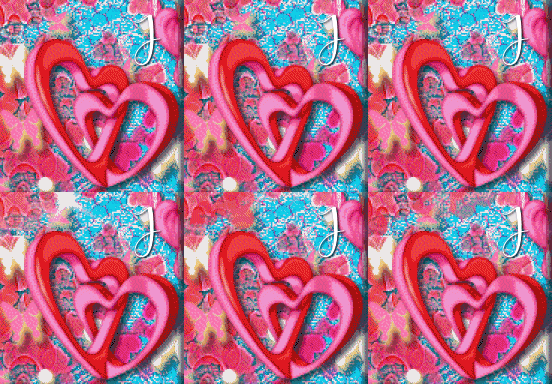
Candy Kisses
Tutorial written by and © to Bits N Bobs 12th January 2022.
Results are for personal use only.
No monetry gain allowed and that includes placing them behind a paid or donation based membership area.
You are not allowed to share/forward or translate any of my tutorials or place them on any blog, website, DVD or anywhere else without my permission.
These tutorials are written from my own ideas and any similarities to any other tutorial is purely coincidental.
All tutorials are for those with a working knowledge of paintshop pro.
I reserve the right to amend these terms at any time.
Supplies needed.
Font of choice for your name.
I am using Mister Valentine
Tube of choice.
I am using Cupids Bow is coming by Bits N Bobs
Tube is not to be used without the correct licence.
Scrap kit freebie Candy Kisses by Bits N Bobs
Items I have used are...
Elements 1, 5, 8,
Papes 1 and 2
Mask of choice
I am using mask 0316 by Simone
Animation
I am using Ani 253 by Simone
Note
This tutorial was written in PSP 9.
Double click on your font and minimize.
Open all other supplies in paintshop.
Install any required plugins
Re-size both papers to 600 pixels wide.
Open a new image, 600 w x 250 h at 72 dpi.
1. Open paper 1,
Copy, paste as a new layer on working image.
Effects/ Edge effects/ Enhance more.
Open paper 4,
Layers/ new mask layer/ from image and select your mask.
Layers/ merge/merge group
Copy, paste as a new layer on working image.
Effects/ Edge effects/ Enhance more.
2. Copy E1, paste as a new layer.
Re-size to 22%, all layers untabbed.
Position to your liking on the right.
Layers/ Duplicate, Image/ Mirror, Image/ Flip
Layers/ Merge/ Merge down.
Add a drop shadow.
I am using...
V 3 - H 3 - O 65 - B 5 - Colour #000000


Layers/ Merge/ merge visible.
File, save as PSP 1.
3. Open a new image, 600 w x 250 h at 72 dpi.
Copy E5, paste as a new layer.
Re-size to 11%, all layers untabbed.
Position to your liking in the top left corner.
Layers/ Duplicate, Image/ Mirror
Layers/ Merge/ Merge down.
Add a drop shadow.
I am using the same settings throughout.
4. Copy your chosen tube, paste as a new layer.
Re-size to 60%
Position to the left hand side.
Add dropshadow.
V 3 - H 3 - O 65 - B 5 - Colour #000000
5. Copy E8, paste as a new layer.
Re-size to 5%, all layers untabbed.
Position to your liking in the bottom right corner.
Add dropshadow.
V 3 - H 3 - O 65 - B 5 - Colour #000000
6. Copy paper 2, paste as a new layer.
Selections/Select all, Image/ crop to selection.
Selections/Select all, Selections /Modify, contract by 5,
Edit/ Cut.
Add dropshadow.
Repeat dropshadow with H -3 and V -3
7. Layers/ New raster layer and addd your copyright info
Layers/ Merge/ merge visible.
File, save as PSP 2.
For animation skip the step in the note below and skip to ANIMATION SHOP.
NOTE *****
If you don't want animation
Add your copyright info, Name and File/Export as jpg and save.
END NOTE *****
ANIMATION SHOP
8. Now we open animation shop.
Open PSP 1
Edit/ Copy, Paste after current frame.
Press Shift+Ctrl+L until you have a total of 16 frames
Or as many frames as your chosen animation has.
Edit/ Select all.
9. Open your chosen animation.
Edit/ Select all, Edit/ Copy
Go back to your working image,
Be sure all are still selected.
Edit/ Paste into selcted frames.
Click View/ Animation.
If you don't like it, undo and re paste into selected frames
and move your mouse before pasting so it's in a different position.
Placing an animation is always trial and error so don't worry if it takes a few attempts.
10. Go back to paintshop.
Activate PSP 2. Copy,
Back to Animation Shop and paste as a new animation.
Edit/ Copy, Paste after current frame.
Press Shift+Ctrl+L until you have a total of 16 frames
Or as many frames as your chosen animation has.
Edit/ Select all.
On working image, Edit/ paste into selected frames.
Be sure it lines up before placing.
File/ Optimiazation wizard
Customize then follow the screen shots for my settings.

You may need to adjust these setting depedning on your tube
but these are what I have used for this particular anamtion.
11. In animation shop Edit/ Select all,
Crop your signature animation so it is
roughly 150 x 150
Animation/ re-size settings.
Resize to 150 x 150 (untab the ratio)
Create your copyright and initial in paintshop.
Copy and back in animation shop paste as a new animtaion.
Edit/ copy.
Activate your avatar.
Edit/ select all, edit/ propogate paste, Edit/ paste into selected frame.
Save as your avatar.


Autumn Bouquet
Tutorial written by and © to Bits N Bobs 15th November 2021.
Results are for personal use only.
No monetry gain allowed and that includes placing them behind a paid or donation based membership area.
You are not allowed to share/forward or translate any of my tutorials or place them on any blog, website, DVD or anywhere else without my permission.
These tutorials are written from my own ideas and any similarities to any other tutorial is purely coincidental.
All tutorials are for those with a working knowledge of paintshop pro.
I reserve the right to amend these terms at any time.
Supplies needed.
Font of choice for your name.
I am using Boshela from Dafont
Tube of choice.
I am using the one included in the kit.
Scrap kit Autumn Bouquet by BitsNBobs
https://mysticalscraps.com/index.php?main_page=index&cPath=7_433
Items I have used are...
Elements 73, 74, 76, 77, 79, 80, 83, 86,
Paper 5
Mask of choice.
I am using Mask 0300 from here by Simone
Leaf Animation available here
created by Lovey's Animations
Note
This tutorial was written in PSP 9.
Double click on your font and minimize.
Open all other supplies in paintshop.
Open a new image 700 wide X 700 high at 72 dpi
1. Selections/ select all.
Open your paper,
Copy, paste into selection, select none.
Close paper.
Open your chosen mask and crop it if needed.
You want the mask to fill the whole paper so no blank sides.
Once done minimize and go back to your working image
Layers/ new mask layer/ from image and select your mask.
Layers/ merge/merge group

Copy and paste elements to your liking or follow below for mine.
2. Copy E86, paste as a new layer.
Image/resize 61%, all layers untabbed.
Add a drop shadow.
I am using...
V 3 - H 3 - O 70 - B 7 - Colour #000000
Copy E74, paste as a new layer.
Image/resize 81%, all layers untabbed.
Add same drop shadow.
Position towards bottom center.
Copy E73, paste as a new layer.
Image/resize 41%, all layers untabbed.
Add same drop shadow.
Position towards bottom left.
Copy E83, paste as a new layer.
Image/resize 30%, all layers untabbed.
Add same drop shadow.
Position towards bottom right.
Layers/ arrange/ mmove down x 2.
Copy E77, paste as a new layer.
Image/resize 30%, all layers untabbed.
Add same drop shadow.
Position towards bottom slightly on the right.
Activate your top layer.
Copy E80, paste as a new layer.
Image/resize 33%, all layers untabbed.
Add same drop shadow.
Position towards the left and stand on the pumpkin.
Copy E79, paste as a new layer.
Image/resize 33%, all layers untabbed.
Add same drop shadow.
Position towards the right and stand on the tree stump.
Activate your frame layer.
Copy E76, paste as a new layer.
Image/resize 59%, all layers untabbed.
Image/ mirror
Add same drop shadow.
Position towards the right side.
3. Copy your tube and paste as a new layer.
Image/resize 31%, all layers untabbed.
Add same drop shadow.
Position towards the left side.
If you don't want the animation then add your
copyright, name and export as a transparent PNG.
4. To animate we first need to prepare our file.
Activate the top layer and add any copyright Info.
Also add your name unless saving as a blank for tag offers.
Close all layers except the frame and paper(mask) layer.
Edit/ copy merged.
Open animation shop.
Edit/ paste/ paste as new animation.
Edit/ copy
Edit/ paste/ paste after current animation.
We now have 2 frames.
Our leaf animation has 30 frames so we need to add more.
Press Shift+Ctrl+L until you have a total of 30 frames.
Alternatively Edit/ paste/ paste after current animation until you reach the 30 frames.
Edit/ Select all
Edit/ propogate paste
Open the leaf animation in animation shop.
Edit/ select all
Edit/ Copy.
Go back to your tag frames by clicking on the top border.
Be sure all the frames are still highlighted.
If not Edit/ select all.
Edit/ paste into selected frames.
Position your pointer towards the top left so it is just below the frame.

View/ Animation
Because you can't see the animation before you paste it you may need to try a couple of times for positioning.
Just Edit/ undo paste and then redo it until you have the correct position.
Don't close anything.
Now go back to Paintshop
Close your open layers and reopen your closed layers.
Edit/ copy merged.
Go back to animation shop.
Edit/ paste as new animation.
Edit/ Copy
Activate your main animation again by clicking on the top border.
Make sure all frames are highlighted.
If not Edit/ select all.
Edit/ paste/ paste into selected frame.
Position to your liking.
Remember to leave a little gap at the bottom.
View/ Animation, hopefully you can see the falling leaves ;)
File/ save as
Customize then follow the screen shots for my settings.


Click OK.
If you want to save these settings for transparent ani tags click the box.
I don't because I find it varies with different tags but these are goo for this one.
Click next until done and Voila.
If you saved this as a blank then to add your name just create it in paintshop.
Edit/ Copy merged
Open animation shop.
Edit/ paste as a new animation.
Edit/ copy
Open your tag.
Edit/ select all.
Edit/propogate paste.
Edit/ paste into selected frame.
Then edit/ save as and follow the same steps as before.
Thought it was about time I gave the tut blog a makeover.
Things may look hinky for a little while so please bear with me.
It hasn't been changed for years so deserves a little TLC lol


Steampunked
Tutorial written by and © to Bits N Bobs 25th August 2021.
Results are for personal use only.
No monetry gain allowed and that includes placing them behind a paid or donation based membership area.
You are not allowed to share/forward or translate any of my tutorials or place them on any blog, website, DVD or anywhere else without my permission.
These tutorials are written from my own ideas and any similarities to any other tutorial is purely coincidental.
All tutorials are for those with a working knowledge of paintshop pro.
I reserve the right to amend these terms at any time.
Supplies needed.
Font of choice for your name.
I am using Candle Script demo
Tube of choice.
I am using Marianne by Chris Pastel
Scrap kit Steampunked by BitsNBobs
Available HERE for free at the time of writing this tutorial
Items I have used are...
Elements 1, 17, 18, 36, 39,
Paper 8
Mask of choice
I am using Vix-mask481 by Vix you can download this HERE
Plugin Filter
Garbage collections Pentacom Dot and Cross HERE
https://www.mediafire.com/file/hgj80b3a09t276w/mmCopies13.zip/file
Note
This tutorial was written in PSP 9.
Install any filters/plugins
Double click on your font and minimize.
Open all other supplies in paintshop.
Open a new image 800 wide X 800 high at 72 dpi
1. Selections/ select all.
Open your paper,
Copy, paste into selection, select none.
Close paper.
Open your chosen mask and crop it.
You want the mask to fill the whole paper so no blank sides.
Once done minimize and go back to your working image
Layers/ new mask layer/ from image and select your mask.
Layers/ merge/merge group
insert ss1
2. Copy E1, paste as a new layer.
Add a drop shadow.
I am using...
V 3 - H 3 - O 70 - B 9 - Colour #000000
insert ss2
Arrange your element to your liking.
I have left mine as is.
3. Copy and paste E39,
Using your magic wand select the blank spaces of the frame.
Hold down your shift key whilst doing so as there are more than one.
Selections/ modify/ expand by 15
Layers/ new raster layer
Flood fill with your colour of choice.
I am using #a66a45
Lyers/ arrange/ move down.
Selections/ select none.
Effects/ pentacom/ dots and cross
Amount: 134 Distance: 11 Width: 2
insert ss3
Layers/ properties/ blend mode/ screen
Opacity: 100, link set: 0, layers visible: checked
4. Activate your top layer.
Now to add some elements.
Copy E18, paste as a new layer.
Image/ resize 55% all layers untabbed.
Adjust/ Sharpness/ sharpen
Position to your liking.
Mine is in the bottom right corner.
Layers/ duplicate, Image/ flip, Image/ mirror
Layers/ merge/ merge down.
Add your drop shadow.
Copy E17, paste as a new layer.
Position to your liking.
Mine is in the top right corner.
Add your drop shadow.
Copy E36, paste as a new layer.
Image/ resize 55% all layers untabbed.
Adjust/ Sharpness/ sharpen
Position to your liking.
Mine is in the bottom left corner.
Add your drop shadow.
5. Be sure your top layer is active.
Copy your tube and paste as a new layer.
Image/ resize 55% all layers untabbed.
Adjust/ Sharpness/ sharpen
Position to your liking.
Mine is in the center.
Add your drop shadow.
Erase the bottom part of your tube so it looks like she is
popping out of the frame.
6. For your name, activate top layer.
I have used Candlescript Demo at size 65,
colour #e99baa
Export and save in your chosen format.
I use a transparent png.
If you just want this tag you are finished.
If you want an AV continue.
7. For your avatar open a new image,
180 x 180 at 72 dpi.
Copy your tag, paste as a new layer.
Position to your liking.
Layers/ merge/ merge visible.
Add your copyright info, initial and then save.


The perfect Winter
Tutorial written by and © to Bits N Bobs 19th August 2021.
Results are for personal use only.
No monetry gain allowed and that includes placing them behind a paid or donation based membership area.
You are not allowed to share/forward or translate any of my tutorials or place them on any blog, website, DVD or anywhere else without my permission.
These tutorials are written from my own ideas and any similarities to any other tutorial is purely coincidental.
All tutorials are for those with a working knowledge of paintshop pro.
I reserve the right to amend these terms at any time.
Supplies needed.
Font of choice for your name.
I am using Boshela
Tube of choice.
I am using the one included in the kit.
Scrap kit The perfect Winter by Creative Scraps by Crys
Available here for free at the time of writing this tutorial
A truly beautiful Kit created for a Truly beautiful woman, Tonya.
Missed by so many in the tagging world but especially those at Misfits.
Items I have used are...
Elements 1, 3, 7, 24, 26, 47, 62, 96, 99 wordart 2,
Paper 3
Mask of choice
I am using Vix-Winter20-Mask1
Plugin Filter
Muras Meister Copies download here
Note
This tutorial was written in PSP 9.
Double click on your font and minimize.
Open all other supplies in paintshop.
Open a new image 800 wide X 800 high at 72 dpi
1. Selections/ select all.
Open your paper,
Copy, paste into selection, select none.
Close paper.
Open your chosen mask and crop it.
You want the mask to fill the whole paper so no blank sides.
Once done minimize and go back to your working image
Layers/ new mask layer/ from image and select your mask.
Layers/ merge/merge group
insert ss1
2. Copy E62, paste as a new layer.
Image/resize 23%, all layers untabbed.
Copy wordart 2, paste as a new layer.
Image/resize 5%, all layers untabbed.
Position to the center of the flower
Add a drop shadow.
I am using...
V 0 - H 0 - O 80 - B 7 - Colour #000000
Lerys/ merge/ merge down
Effects/ Plugins/ Muras meister/ copies
Settings:
Shift mode/ Circle,
Tile mode/ Wraparound,
Blend mode/ Normal,
15, 50, 50, 0, 0, 0, 100, 0, 100, 0, 0, 30, 0
See screenshot below
insert ss2
Add a drop shadow.
I am using...
V 3 - H 3 - O 70 - B 9 - Colour #000000
Your flower frame should be automatically centered
but feel free to move it to your liking.
3. Now to add some elements.
Copy and paste element 96,
Layers/ arrange/ move down.
Position to the left.
Layers/ duplicate,
Image/ Mirror, Image/ flip.
Layers/ arrange / move down.
Using your eraser or selction tool,
remove any of the element from the center of the frame.
Layers/ merge/ merge down.
4. Activate your top layer.
Copy Element 1, paste as a new layer.
Image/ resize 69% all layers untabbed.
Adjust/ Sharpness/ sharpen
Position to your liking.
Mine is towards the left.
Add your drop shadow.
Copy element 2, paste as a new layer.
Position to your liking.
Mine is on the right hand side.
Add your drop shadow.
Copy element 99, paster as a new layer.
Position to your liking.
Mine is towards the right slightly.
Copy Element 3, paste as a new layer.
Image/ resize 31% all layers untabbed.
Position to your liking.
Mine is on her hand.
Erase the string on the star.
Add your drop shadow.
5. Copy and paste element 26 and resize to 31%
Position by the tubes feet.
Add your dropshadow.
Copy and paste element 24 and resize to 31%
Position at the base of the tree on the left.
Add your dropshadow.
Copy and paste element 86 and resize to 57%
Position at the bottom on the left corner.
Layers/ duplicate, Image/ Mirror, Layers/ Merge/ merge down.
Add your dropshadow.
Layers/ Arrange/ move down.
Keep moving down until it is below your tube layer.
Copy and paste element 47 and resize to 57%
Position at the bottom in the center to cover the gap.
Add your dropshadow.
Copy and paste element 98,
Layers/ duplicate,
Layers/Arrange/ Merge, merge down.
Copy and paste element 7 and resize to 39%
Adjust/ Sharpness/ sharpen.
Position to the bottom left corner of your tube.
Add your dropshadow.
6. Activate your top layer.
Copy and paste your wordart 3,
Resize it to 41%.
Adjust/ Colour balance/ Manual Colour correction.
Target #e292a2 Source #f4efdd
Layers/ Duplicate, Layers/ Merge/ Merge down.
Position to your liking.
Mine is in the center.
Layers/ Arrange/ Move down.
Repeat until it is 1 layer above your snow flurries.
I haven't added a drop shadow but it is your choice.
7. For your name, activate top layer.
I have used Boshela at size 48,
colour #e99baa in stroke and fill.
Stroke width 1, antialias smooth.
put it below the wordart.
Export and save in your chosen format.
I use a transparent png.
If you just want this tag you are finished.
If you want the set continue.
8. Open a new image,
700 x 250 at 72 dpi.
Now it is just a case of copying images from your main tag image
(remember you didn't merge it) and placing them wherever you want.
Here is mine.
Flood fill with #e290a0
Selections/ all, Selections/ Float, Selections/ defloat
Selections/ modify/ contract by 5, flood fill with #FFFFFF
Selections/ modify/ contract by 3, flood fill with #e290a0
Selections/ modify/ contract by 1, Edit/cut
Layers/ new raster layer, Arrange/ layers/ move down, floodfill #FFFFFF
Copy the background from your tag, paste as a new layer,
Layers/ duplicate, layers/ Merge/ merge down.
Position in the bottom left corner so the top laft corner of the background is showing
Layers/ duplicate, Image/ Mirror, layers/ Merge/ merge down.
Copy your penguin, paste and position in the bottom right corner.
Copy your cat, paste and position in the bottom left corner.
Copy your tube, paste and position in the center and slightly to the right.
Copy your winter wonderland wordart, paste and position at the bottom between the tube and the penguin.
adjust the layers blend mode to Dodge.
Copy your frame, paste and position on the left hand side,
adjust the layers blend mode to Overlay.
Layers/ Duplicate, Image/ mirror, layers/ Merge/ merge down.
Add your copyright info, add your name using
the same settings as step 7 of the tag, then save as you did your tag.
8. For your avatar open a new image,
180 x 180 at 72 dpi.
Copy your tag, paste as a new layer.
Position to your liking.
Layers/ merge/ merge visible.
Add your copyright info, initial and then save.

Tutorial written by and © to Bits N Bobs 6th July 2021.
Results are for personal use only.
No monetry gain allowed and that includes placing them behind a paid or donation based membership area.
You are not allowed to share/forward or translate any of my tutorials or place them on any blog, website, DVD or anywhere else without my permission.
These tutorials are written from my own ideas and any similarities to any other tutorial is purely coincidental.
All tutorials are for those with a working knowledge of paintshop pro.
I reserve the right to amend these terms at any time.
Supplies needed.
Download my supplies HERE including the mask
Font of choice for your name.
I am using Rage Italic from FontsGeek here
Tube of choice.
I am using Marie is coming by Jenny here
Tube is not to be used without the correct licence.
Mask of choice
I am using mask Christmas 5 by Essex girl (in the supply zip)
Note
This tutorial was written in PSP 9.
Double click on your font and minimize.
Open all other supplies in paintshop.
Open a new image 650 wide X 650 high at 72 dpi
1. Selections/ select all, Selections/ modify,
Selections/ modify contract by 30.
Copy your tube, paste into selection.
Effects/ Dsb flux/ Central mirror, Mirrors 9, Rotation 147
Selections/ modify/ expand by 15.
Layers/ new raster layer.
Flood fill with a colour from your tube.
I have chosen #1d5837
Layers/ arrange/ move down.
Selections/ select none.
Layers/ new mask layer/ from image and select your mask.
Layers/ merge/merge group/ merge visible

Activate your filtered tube layer and change the blend mode to lighten.
Lower the layer opacity to 75%
2. Copy and paste your tube as a new layer.
Position to your liking, mine is on the right hand side.
Add a drop shadow.
I am using...
V 3 - H 3 - O 80 - B 7 - Colour #000000
3. Activate your filtered tube layer,
Copy the fireplace, paster as a new layer.
Position up and to the left slightly.
Add the same drop shadow as before.
Copy Noel element, paste as a new layer.
Layers / resize to 41%, position on the to of the fireplace.
Add the same drop shadow as before.
4. Layers/ new raster layer.
Add your copyright info and name
export and save in your chosen format.
I use a transparent png.
5. For your avatar open a new image,
180 x 180 at 72 dpi.
Copy your tag, paste as a new layer.
Position to your liking.
Layers/ merge/ merge visible.
Add your copyright info, initial and then save.


Wonder of Alice
Tutorial written by and © to Bits N Bobs 3rd July 2021.
Results are for personal use only.
No monetry gain allowed and that includes placing them behind a paid or donation based membership area.
You are not allowed to share/forward or translate any of my tutorials or place them on any blog, website, DVD or anywhere else without my permission.
These tutorials are written from my own ideas and any similarities to any other tutorial is purely coincidental.
All tutorials are for those with a working knowledge of paintshop pro.
I reserve the right to amend these terms at any time.
Supplies needed.
Font of choice for your name.
I am using Alice in Wonderland from Dafont HERE
Tube of choice.
I am using Alice in Wonderland by Dilara HERE
Tube is not to be used without the correct licence.
Scrap kit Alice by Wicked Diablo HERE
Items I have used are...
Elements 6, 7, 8, 20, 47, 48, 52, 59, 60,
Paper 1
Mask of choice
I am using cornered octagon by Essex Girl My supplies download HERE
Wording in the same zip file as the mask.
Note
This tutorial was written in PSP 9.
Double click on your font and minimize.
Open all other supplies in paintshop.
Remember to save your work regularly so you don't lose it.
Open a new image 650 wide X 650 high at 72 dpi
1. Selections/ select all.
Open your paper,
Copy, paste into selection, select none.
Close paper.
Layers/ new mask layer/ from image and select your mask.
Layers/ merge/merge group/ merge visible

2. Copy E7, paste as a new layer.
Image/ resize 75% position in the middle.
Add a drop shadow.
I am using...
V 3 - H 3 - O 80 - B 7 - Colour #000000
Copy your chosen tube and paste as a new layer.
Image/ resize 21% (all layers untabbed always)
position towards the bottom right hand side.
Add the same drop shadow as before.
Copy E20, paste as a new layer.
Image/ resize 29% and position so it looks like Alice is leaning on it.
Add the same drop shadow as before.
3. Now to add some more elements.
This is the longest part.
Copy E59, paste as a new layer.
Image/mirror, Image/ resize 19%
Position on top of the mushroom on the left of Alice.
Add the same drop shadow as before.
Copy E60, paste as a new layer.
Image/ resize 23%
Position to the left so i'ts pouring into the cup.
Add the same drop shadow as before.
Copy E6, paste as a new layer.
Image/mirror, Image/ resize 45%
Position to the left bottom corner.
Add the same drop shadow as before.
Copy E48, paste as a new layer.
Image/ resize 25%
Position to the right so it looks like it is coming out
of Alice's pocket and being held by the caterpillar.
Add the same drop shadow as before.

Copy E52, paste as a new layer.
Image/ resize 21%
Position to the right and layers/ arrange/ move down
until it is below the tube layer and position behind
the caterpillar.
Add the same drop shadow as before.
Copy E47, paste as a new layer.
Image/ resize 21%
Position ontop of the mushroom behind the teapot and cup
Add the same drop shadow as before.
Copy E8, paste as a new layer.
Image/ resize 27%
Position behind the rabbit.
Layers/ duplicate layer, Image/mirror.
Turn off your tube layer for this next part.
Move the right roses up slightly so it's not
in the keyhole of the book.
Turn your tube layer back on.
Right rose layer, Layers/ merge/ merge down.
Layers/ arrange/ move down X 2
Add the same drop shadow as before.
Copy E8 again, paste as a new layer.
Image/ resize 27%
Position towards the top left corner,
Layers/ duplicate layer, layers/ arrange/ move down X2.
Image/mirror layers/ merge/ merge down.
Add the same drop shadow as before.
5. Copy the wording file and paste as a new layer.
Position to your liking.
Mine is at the top center.
Layers/ properties, change the blend mode to Lighten.
DO NOT MERGE
6. Layers/ new raster layer.
Add your copyright info.
7. For your name.
Use font Alice in Wonderland, size 48 colour #f50203.
Layers/new raster layer.
Add your name, selections/modify/ expand by 3,
layers/new raster layer flood fill with white, #FFFFFF
Layers/ arrange/ move down.
Selections/modify/ expand by 1
layers/new raster layer flood fill with blue, #0058af
Layers/ arrange/ move down.
Selections/ select none.
Add the same drop shadow as before.
Active your red name layer,
Layers/ merge/ merge down X2
Layers/ properties, change the blend mode to Lighten.
Export and save in your chosen format.
I use a transparent png.
If you just want this tag you are finished.
If you want the set continue.
8. Open a new image,
600 x 250 at 72 dpi.
Now it is just a case of copying images from your main tag image
(remember you didn't merge it) and placing them wherever you want.
Here is mine.
9. Copy your top corner rose layer, paste as a new layer.
Posiotion to top left corner.
Layers/ duplicate/ duplpicate layer, Image/ mirror
Layers/ merge/ merge down. Layers/ duplicate, Image/ flip.
Layers/ merge/ merge down.
Add the same drop shadow as before.
Copy your rabbit layer, paste as a new layer.
Image/resize 65% position to the left.
Layers/ duplicate, Image/ mirror.
Copy Alice layer, paste as a new layer.
Image/resize 65% position to the left.
Copy your wording layer, paste as a new layer.
Position slightly towards the top center.
You want to be able to see the rabbit faces.
Activate your rabbit layer.
Copy your small cards, paste as a new layer.
Position in the center.
Copy your teacup, paste as a new layer.
Position towards the bottom.
Copy your teapot, paste as a new layer.
Position towards the bottom.
Now position your teacup and teapot so the are more central at the bottom.
Copy your cake layer, Image/ resize 39% position the the left of the teapot.
Layers/ duplicate, position to the right of the teacup.
10. Add your copyright info, add your name using
the same settings as step 7. then save as you did your tag.
11. For your avatar open a new image,
180 x 180 at 72 dpi.
Merge your first tag.
Copy your tag, paste as a new layer.
Position to your liking.
Layers/ merge/ merge visible.
Add your copyright info, add your initial using
the same settings as step 7. then save as you did your tag.
If you followed this whole tutorial thank you it took me forever to write it lol


Beautiful Mermaid
Tutorial written by and © to Bits N Bobs 1st July 2021.
Results are for personal use only.
No monetry gain allowed and that includes placing them behind a paid or donation based membership area.
You are not allowed to share/forward or translate any of my tutorials or place them on any blog, website, DVD or anywhere else without my permission.
These tutorials are written from my own ideas and any similarities to any other tutorial is purely coincidental.
All tutorials are for those with a working knowledge of paintshop pro.
I reserve the right to amend these terms at any time.
Supplies needed.
Font of choice for your name.
I am using Sun Sea Sand from Dafont
Tube of choice.
I am using Beautiful Mermaid by Alex Prihodko
Tube is not to be used without the correct licence.
Plugins
Graphnet plugins Funhouse available here
and DSB Flux available here
Note
This tutorial was written in PSP 9.
Double click on your font and minimize.
Open all other supplies in paintshop.
Open a new image 600 wide X 250 high at 72 dpi
1. Selection a colour from your tube and flood fill your image.
I am using #d1f9fe
Copy and then paste your tube onto your working image.
Position all the way to the right so just her tail is in your image.
Layers/duplicate, Image/mirror, Layers/merge/merge visible.
Effects/ plugins/ Funhouse/ Radial mirror (see screenshot below)

Effects/ plugins/ Funhouse/ Ring tile (see screenshot below)

2. Copy and then paste your tube onto your working image as a new layer.
Position to your liking, see screenshot below for mine. 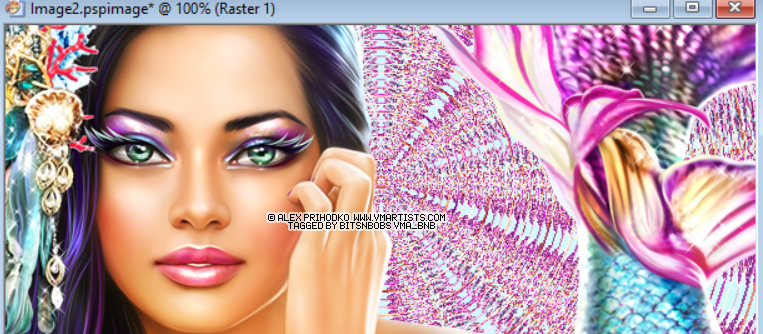
Add a drop shadow.
I am using...
V 3 - H 3 - O 80 - B 7 - Colour #000000 (see screenshot below)

Effects/ plugins/ DSB Flux/ Bubbles
10, 73, 21, 79 (see screenshot below)

Change your layers blend mode to hard light.
3. Copy and then paste your tube onto your working image as a new layer.
Image/ resize 35% all layers untabbed.
Position to your liking, mine is on the left.
Add a drop shadow using the same settings.
4. Copy and then paste your tube onto your working image as a new layer.
Position to your liking, mine is on the right.
You want her face taking up the right side of the tag.
Add a drop shadow using the same settings.
Change the layer blend mode to hard light and the layer opacity to 70%
5. Layers/ new raster layer.
Flood fill with a colour from your tube.
I am using #4cd8ef
Selections/select all, Selections/float, Selections/ defloat, Selections/ modify/ contract by 3,
flood fill with white #FFFFFF
Selections/ modify/ contract by 2, flood fill with the colour you selected mine is #4cd8ef
Selections/ modify/ contract by 1, hit delete on your keyboard.
Selections/ invert/ add your dropshadow.
6. Layers/ new raster layer.
Add your copyright info and name
export and save in your chosen format.
I use a transparent png.
7. For your avatar open a new image,
180 x 180 at 72 dpi.
Copy your tag, paste as a new layer.
Position to your liking.
Layers/ merge/ merge visible.
Add your copyright info, initial and then save.
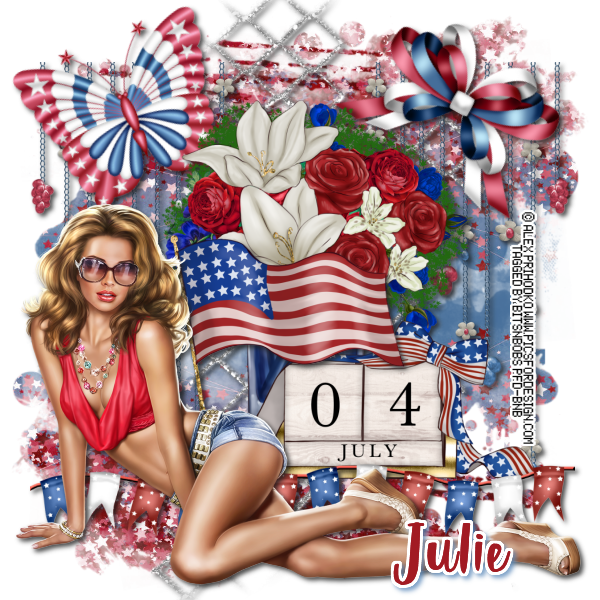

Celebrate July
Tutorial written by and © to Bits N Bobs 15th June 2021.
Results are for personal use only.
No monetry gain allowed and that includes placing them behind a paid or donation based membership area.
You are not allowed to share/forward or translate any of my tutorials or place them on any blog, website, DVD or anywhere else without my permission.
These tutorials are written from my own ideas and any similarities to any other tutorial is purely coincidental.
All tutorials are for those with a working knowledge of paintshop pro.
I reserve the right to amend these terms at any time.
Supplies needed.
Font of choice for your name.
I am using Sun Sea Sand from Dafont
Tube of choice.
I am using Summer is coming by Alex Prihodko
Tube is not to be used without the correct licence.
Scrap kit Celebrate July by Bits N Bobs
Items I have used are...
Elements 2, 3, 4, 8, 13, 38, 55, 69,
Paper 76
Mask of choice
I am using mask0186 from Scrappybitoffun
Note
This tutorial was written in PSP 9.
Double click on your font and minimize.
Open all other supplies in paintshop.
Open a new image 600 wide X 600 high at 72 dpi
1. Selections/ select all.
Open your paper,
Copy, paste into selection, select none.
Close paper.
Layers/ new mask layer/ from image and select your mask.
Layers/ merge/merge group/ merge visible

2. Copy E69, paste as a new layer.
Position to your liking, I left mine as is.
Add a drop shadow.
I am using...
V 3 - H 3 - O 80 - B 7 - Colour #000000
and
V -3 - H -3 - O 80 - B 7 - Colour #000000
Copy E55 paste as a new layer.
Image/ resize 45% position towards the right hand side.
Layers/ duplicate, Image/ mirroy, Layers/ merge/ merge down
Add the same drop shadow as before.

3. Now to add some elements.
Copy E8, paste as a new layer.
Image/ resize 45% same settings
Using your raster deform tool rotate and position to your liking.
Mine is in the top left corner.
Add your drop shadow.
Copy E13, paste as a new layer.
Image/ resize 45% same settings
Using your raster deform tool rotate and position to your liking.
Mine is in the top right corner.
Add your drop shadow.
4. Copy and paste E4 and resize to 57%
Position in the middle and slightly to the right.
Add your dropshadow.
Copy and paste E2 and resize to 57%
Position in the middle to the bottom of the flower pot.
Add your dropshadow.
5. Copy and paste E3 and resize to 47%
Position in the middle so it will be slighty behind your tube in the next step.
Add your dropshadow.
Copy and paste E38 and resize to 66%
Positon to the bottom of the date block.
Add your dropshadow.
6. Now copy and paste your tube.
If using the same as me resize it 41%.
Position to your liking.
Mine is at the bottom towards the left.
Add your dropshadow.
7. Layers/ new raster layer.
Add your copyright info and name
export and save in your chosen format.
I use a transparent png.
8. For your avatar open a new image,
180 x 180 at 72 dpi.
Copy your tag, paste as a new layer.
Position to your liking.
Layers/ merge/ merge visible.
Add your copyright info, initial and then save.
I have found my old hard drive with my DVP tutorials and will be updating them all so if there are any you would like to see update first be sure to reply to this so I know :)


Forever Love 2
Tutorial written by and © to Bits N Bobs 31st January 2018.
Results are for personal use only.
No monetry gain allowed and that includes placing them behind a paid or donation based membership area.
You may add a link for this tutorial on your forum etc.
You are not allowed to share/forward or translate any of my tutorials or place them on any blog, website, DVD or anywhere else without my permission.
These tutorials are written from my own ideas and any similarities to any other tutorial is purely coincidental.
All tutorials are for those with a working knowledge of paintshop pro.
I reserve the right to amend these terms at any time.
Supplies needed.
Font of choice for your name.
I am using Daily grind
Tube of choice.
I am using Cupids Bow by Bits N Bobs available here
Tube is not to be used without copyright credit
Masks of choice.
I am using Vix_Mask363 by Vix available here
Scrap kit Forever Love here by Bits N Bobs
I am using Paper 10 and Elements 2, 9, 12, 68, 71, 72, 73, 74, 77,
Plugins required (optional)
Plugin - Penta.com dot and cross ( Garbage collection)
Note
This tutorial was written in PSP 9 and
uses animation shop 3 for animation.
Open all supplies in paintshop except the font.
Double click on your font and minimize.
Add your mask to your mask folder.
Open a new image 600 X 600 at 72 dpi
1. Activate and copy paper 10.
Activate your working image.
Edit/ paste as a new layer.
Layers/ Load/Save mask, Load mask from Disk,
scroll through and select your mask.
Tab Source Luminance, Fit to canvas, hide all mask.

Layers/ merge/ merge group.
Effects/ plugins/ penta.com/ Dots and cross
Amount:72 Cross distance:10 Cross width:2

Layers/ merge/ merge visible.
2. Copy element 68.
Paste as a new layer.
Image/ re-size to 500 pixels wide,
all layers un-tabbed.
3. Copy and paste your tube.
Image/ re-size to 400 pixels wide,
all layers un-tabbed.
Cut away below the knees.
Position towards the left.
Activate your frame layer.
Selections/ select all,
Selections/ float,
Selections/ defloat,
Activate your tube layer,
use your eraser to cut away your tube on the frame bottom.
Activate your tube layer,
Selections/ select none.
Now erase the rest of her legs at the bottom.
Add a dropshadow of choice to both layers.
I have used V3 H3 O40 B7 Colour #000000

4. Activate your bottom layer.
Copy element 71.
Paste as a new layer.
Image/ re-size to 350 pixels wide,
all layers un-tabbed.
Position towards the top left.
Layers/ duplicate, Image/ mirror.
Layers/ merge down.
Layers/ duplicate,
Position towards the bottom right.
Layers/ merge down.
Add your drop shadow.
5. Activate your bottom layer.
Copy element 74.
Paste as a new layer.
Image/ re-size to 180 pixels high,
all layers un-tabbed.
Position towards the right
Add your drop shadow.
6. Copy element 12.
Paste as a new layer.
Image/ re-size to 340 pixels wide,
all layers un-tabbed.
Position towards the bottom left corner.
Add your drop shadow.
7. Copy element 73.
Paste as a new layer.
Image/ re-size to 180 pixels wide,
all layers un-tabbed.
Position towards the bottom right corner.
Add your drop shadow.
8. Copy element 77.
Paste as a new layer.
Image/ re-size to 150 pixels wide,
all layers un-tabbed.
Position towards the bottom.
Add your drop shadow.
9. Copy element 72.
Paste as a new layer.
Image/ re-size to 150 pixels wide,
all layers un-tabbed.
Position towards the top right corner.
Add your drop shadow.
10. Copy element 2.
Paste as a new layer.
Image/ re-size to 300 pixels wide,
all layers un-tabbed.
Position towards the bottom.
Add your drop shadow.
11. Copy element 9.
Paste as a new layer.
Image/ re-size to 150 pixels wide,
all layers un-tabbed.
Position towards the top left corner.
Activate and use your raster deform tool to turn your element.
Layers/ duplicate, Image/ mirror,
position towards the right side middle.
Layers/ merge/ merge down.
Add your drop shadow.
12. Add all copyright info.
Export and save as a transparent png
Matching AV
13. For a matching AV open a new image
180 x 180 and 72 dpi.
Copy your tag and paste as a new layer.
Position to your liking.
Add copyright info and name,
export as jpg and save.


Forever Love
Tutorial written by and © to Bits N Bobs 29th January 2018.
Results are for personal use only.
No monetry gain allowed and that includes placing them behind a paid or donation based membership area.
You may add a link for this tutorial on your forum etc.
You are not allowed to share/forward or translate any of my tutorials or place them on any blog, website, DVD or anywhere else without my permission.
These tutorials are written from my own ideas and any similarities to any other tutorial is purely coincidental.
All tutorials are for those with a working knowledge of paintshop pro.
I reserve the right to amend these terms at any time.
Supplies needed.
Font of choice for your name.
I am using Midnight Legend http://www.dafont.com/midnight-legend.font
Tube of choice.
I am using the one from the kit by Bits N Bobs available here
Mask of choice.
I am using Vix_Mask448 by Vix available in the supplies file
Scrap kit Forever Love by Bits N Bobs
Plugins required (optional)
Plugin - Penta.com dot and cross ( Garbage collection)
Note
Download extra supplies here
This tutorial was written in PSP 9 and
uses animation shop 3 for animation.
Open all supplies in paintshop except the font.
Double click on your font and minimize.
Add your mask to your mask folder.
Open a new image 600 X 250 at 72 dpi
1. Activate and copy paper 8.
Activate your working image.
Edit/ paste as a new layer.
Activate and copy paper 9.
Activate your working image.
Edit/ paste as a new layer.
Layers/ Load/Save mask, Load mask from Disk,
scroll through and select your mask.
Tab Source Luminance, Fit to canvas, hide all mask.
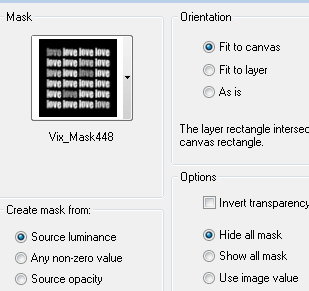
Layers/ merge/ merge group.
Effects/ plugins/ penta.com/ Dots and cross
Amount:72 Cross distance:10 Cross width:2

Layers/ merge/ merge visible.
2. Copy element 71.
Paste as a new layer.
Image/ re-size to 500 pixels wide,
all layers un-tabbed.
Add a dropshadow of choice.
I have used V3 H3 O40 B7 Colour #000000

3. Copy element 3.
Paste as a new layer.
Image/ re-size to 250 pixels wide,
all layers un-tabbed.
Position to the top left corner
Add your drop shadow.
4. Copy element 7.
Paste as a new layer.
Image/ re-size to 150 pixels wide,
all layers un-tabbed.
Position to the bottom left corner
Add your drop shadow.
5. Copy element 72.
Paste as a new layer.
Image/ re-size to 100 pixels wide,
all layers un-tabbed.
Position towards the top
Add your drop shadow.
6. Copy element 12.
Paste as a new layer.
Image/ re-size to 240 pixels wide,
all layers un-tabbed.
Position towards the bottom
Add your drop shadow.
7. Copy your tube (element 80).
Paste as a new layer.
Image/ re-size to 400 pixels wide,
all layers un-tabbed.
Position towards the bottom right corner
Add your drop shadow.
Layers/ merge/ merge visible.
Adjust/ sharpness/ sharpen
8. Layers/ new raster layer.
Click on your forground pallette and pick a
colour from your tag for your border.
I have chosen #7bc4c2
Floodfill with your chosen colour.
Selections/ select all, Selections/ float, Selections/ defloat
Selections/ modify/ contract by 5
Edit/ cut, Selections/ select none.
9. Add all copyright info.
Export and save as a jpg
Matching AV
10. For a matching AV open a new image
180 x 180 and 72 dpi.
Copy your tag and paste as a new layer.
Position to your liking.
Layers/ new raster layer
Floodfill with your chosen colour.
Selections/ select all, Selections/ float, Selections/ defloat
Selections/ modify/ contract by 3
Edit/ cut, Selections/ select none.
Add copyright info and name,
export as before and save.
Stores


BNB Blinkie